

Back Issue Archive Help
Video Demonstrations
Windows
Transcript
This is a tutorial for downloading and opening the 2025 Active Interest Media back issue library archive software on Windows 11. So after you make your purchase, you will be met with a receipt page here which will have the download link. Otherwise you will get two emails, one a receipt email, one a confirmation email, the receipt email will lead back to this page so we'll have the download link and the confirmation email will lead to this page which will also have the same download link. So click on one of these and then it should start your download and then we'll fast forward a bit. Once you have the file downloaded then it should be near downloads folder so in any browser you use it should be up here the downloads icon a little downward pointing arrow so you can see in Chrome it's right here in Edge it is right here so that arrow should eventually take you you click a little folder icon here and then it should take you to downloads folder directly which one ever specified in your browser settings. Otherwise if you need to navigate to it apart from that you can click on the start menu icon and start typing downloads and it should get you here or you can go my computer or this PC and click on that and then it's usually in local disk C and then users and your username and then there should be a downloads link. So any of those methods will take you here and after you've gotten to the downloads folder you can right-click it and then extract all and this should pop up extract and then wait a few minutes for it to finish. After it's done extracting it should take you into the folder here in the little bit two files they'll be a read me which will contain the same information in this tutorial video and there'll be the ISO file so you probably don't need to click the read me if you're watching this but you could if you need further explanation otherwise just click the ISO file or double click it and then Windows 11 has smart app control which sometimes tends to block this ISO file that's for probably new installs of Windows it's installed on not on ones that have been migrated from Windows 10 so if you encounter this message right click on the ISO file click show more options click properties and then there'll be a check mark box here to unblock it so check this apply okay and then double click this and then it'll mount it as a virtual hard drive to your computer here and then at this point you can just click start here it'll open your default browser and then if this message pops up here at the top click allow and then you should be good to go if you need to get back into it if you go to this PC note that it is mounted right here so we can eject it and then to get back into it you go to downloads folder again and then go to the ISO file again double click it and it remounts it and then click start here again
Mac
Transcript
This is the tutorial for downloading and opening the 2025 Active Interest Media Back Issue Library Archive software on Mac OS. So first thing you want to do, after you make your purchase, you should have a receipt page here which will have a download link so you click this. Otherwise you will also receive a confirmation email and a receipt email. The receipt email will link you back to this receipt page and the confirmation email will send you to this page. So both of them will have a download link. So click on one of them and then it will start downloading here in the top right. And we will fast forward here because I've already downloaded it because it takes a bit because it's 4.5 gigabytes or something. So after it's downloaded, you can either click on Finder and then click Downloads and it'll be here or in your browser if you click this download icon, then it should also be here and you could also click it or right click on the Show and Finder. So after you have found the file on your computer, after it's been downloaded, then you can double click it and then the archive utility should unzip the file. And this may take a bit too because it's a bit big. After the file is unzipped, you can open it and then it's going to have two files inside it: a readme and an ISO. So double click the ISO and it will mount as a virtual drive on your computer and it'll show up on your desktop here and on the sidebar here, so you click either one and then click Start here and if this message pops up, just click Allow and then you're in.
Instructions
-
Click the download link (details)
After you make your purchase, look for the download link. It should be on the receipt page and in the receipt email. The zip file is a compressed folder containing the ISO file, which is the disk image that contains the back issue archive software and files. Click the link to download the zip file.
-
Navigate to your downloads folder (details)
Once you have the zip file downloaded, navigate to the folder it was downloaded into. Browsers typically display a download icon in the upper right during and after a file is downloaded (
 ), so you can probably click that to find your downloads folder.
Otherwise, on Windows, the downloads folder is typically located at
), so you can probably click that to find your downloads folder.
Otherwise, on Windows, the downloads folder is typically located at
C:\Users\<your username>\Downloads\

On Macs, the downloads folder is located at
/Users/<your username>/Downloads/

On Linux, the downloads folder is located at
/home/<your username>/Downloads/
-
Extract the ISO from the zip file (details)
Once you have navigated to your downloads folder and found the zip file, you need to unzip it to extract the ISO.
Windows
On Windows, right-click the zip file and select "Extract All...". Check the "Show extracted files when complete" checkbox. Click the Extract button on the resulting dialog box. A new window will appear with the extracted files.
Mac
On Mac, double-click the zip file. A folder with the same name as the zip file will be created. Double-click the new folder to view the extracted files.
-
Double-click the ISO file (details)
Once you have extracted the ISO file from the zip file, double-click it. This should mount it as a drive and cause you to enter it as if it were a folder. Ignore any security warnings that pop up. Your operating system might ask if you want to open the file. If it does, click "Open" or "Yes" or "Proceed". Note that, if you have file and folder extensions hidden, you may not see the .iso extension at the end of the file. However, it should still be labeled as a disc image file in the "type" column on Windows, and it should still have been the thing that you just downloaded.
Windows

Mac
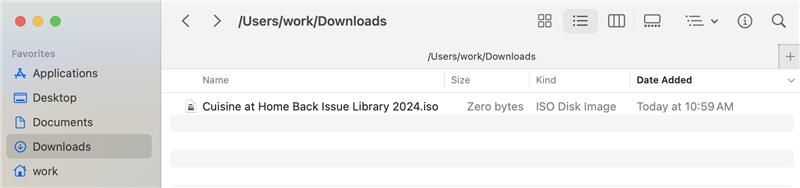
-
Bypass Smart App Control on Windows 11 (details)
Ignore this step if you are not on Windows 11 or are not blocked by the Smart App Control warning message. On new Windows 11 installations, sometimes Smart App Control may be activated in the settings, which might block the ISO file from opening. If this happens, you may receive a message saying, "Smart App Control blocked a file that may be unsafe. This file was blocked because files of this type from the internet can be dangerous". If you see this popup, and if you are sure the file came from us and not someone impersonating us (see warning below), then click Okay to exit the popup, and then right click the iso file and click "Show more options" from the context menu that appears. Then click Properties. At the bottom of the General tab in the properties menu, you should see a Security section with a checkbox labeled, "Unblock". Check this box and then click the Apply button and the OK button. Then double-click the ISO again. As long as you downloaded this file directly from the receipt page or from the email that came to you right after you made your purchase, it should be safe to bypass Smart App Control this way.
The Smart App Control warning would look like this:
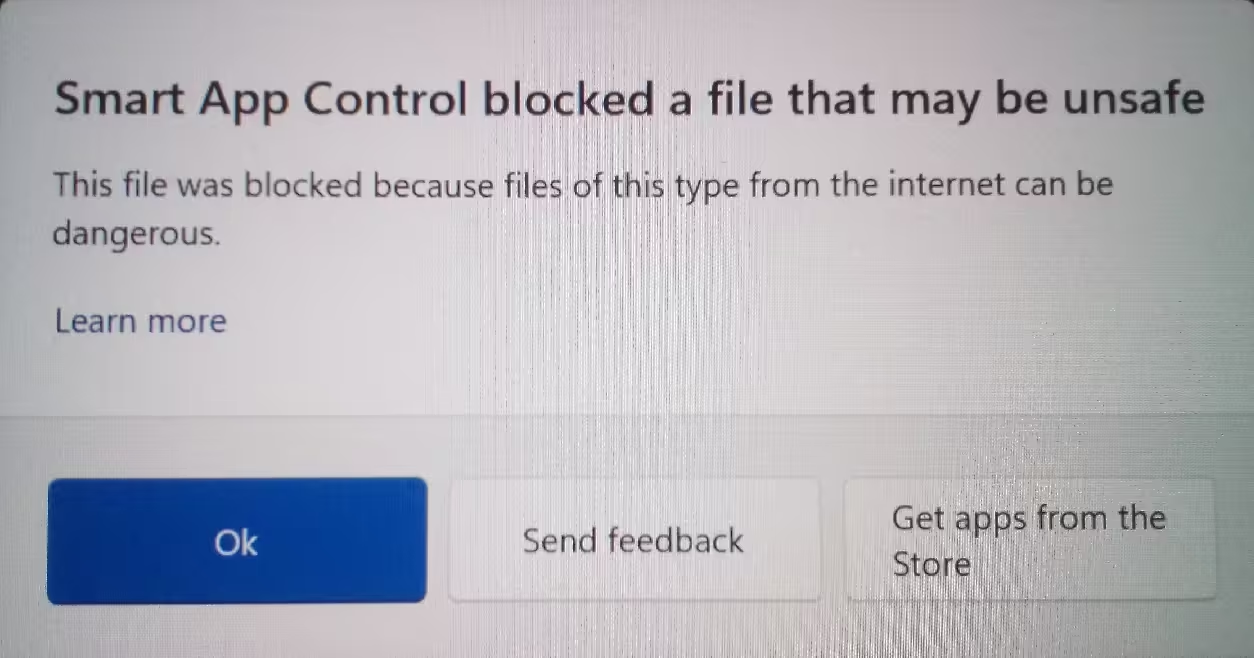
Below is an image of the context menu that you should see after right-clicking the ISO. You can check the box at the bottom here to unblock the file.
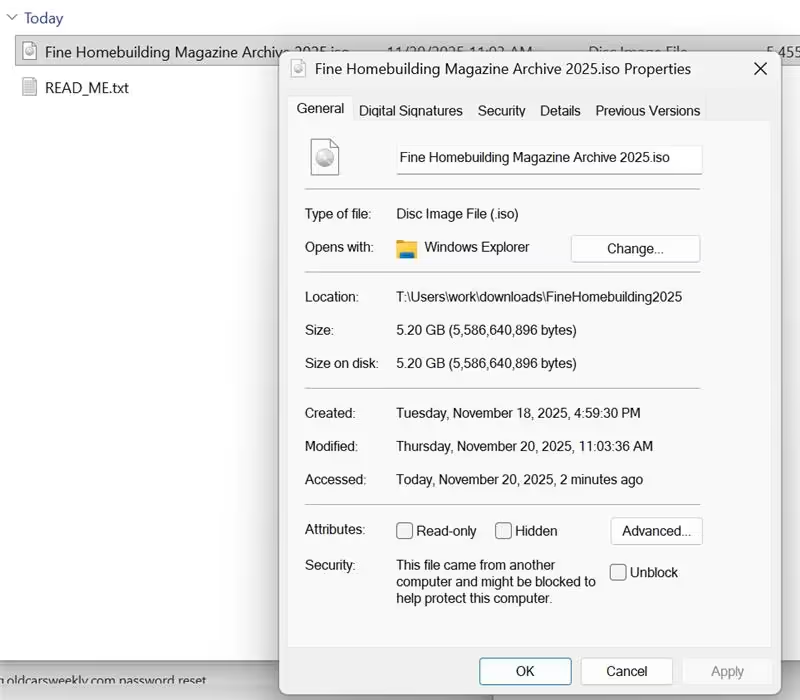
If you do not see a checkbox to unblock this ISO file, then you may need to contact us, and we will send you the unpackaged files instead of the ISO.
-
Double-click the "Start Here" file (details)
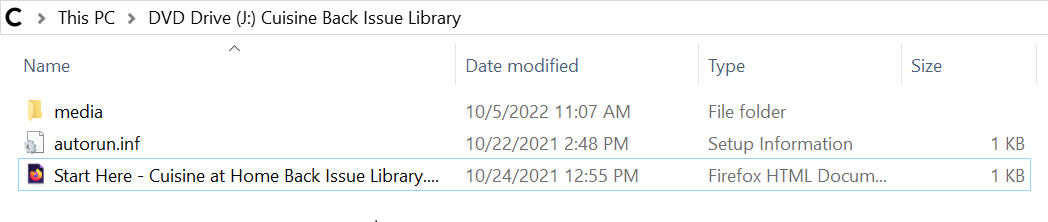
Once you have double-clicked on the ISO file and entered the drive that it created, you should see 1 folder and 2 files within this drive:
- media/
- autorun.inf
- Start Here - ...
Ignore the media folder and the autorun.inf file. Double-click on the "Start Here - ..." file. This is an html file that will open in your default browser.
Supported Operating Systems
Our software should run on any operating system that can run a web browser, so it should work on Windows, Mac, and Linux. The particular version of your OS is not as important as the browser you are using. Nevertheless, updating to the newest version of your operating system cannot hurt, because that is usually what we test things on.
Supported Browsers
This software should work on most modern browsers. Here are some options:
The software is not supported in Internet Explorer. If you are using Internet Explorer, please switch to Edge or another browser. Please ensure that your browser is up-to-date. Please make sure that you are not running any plugins that may interfere with the software.
Troubleshooting
If you have trouble with the software, here are some different things you could try:
- If you are using a usb stick, eject it, remove it from the port, and put it back in again.
- Right-click the drive that was mounted when you clicked on the ISO file, and eject it. Then double-click the ISO file again to re-mount it.
- Try opening the software in incognito/private browsing mode. This uses a separate set of cookies from your normal browser window, so if this fixes the problem, then it could be your cookies, so you would want to clear them.
- Restart your browser.
- Try using some different browsers.
- Restart your device.
- Try using a different device.
- Disable any browser plugins you may be running. If the problem disappears, re-enable them one by one until the problem appears again, to find out which plugin was causing the issue.
- Clear your cache and cookies.
- If the screen appears to be stuck loading forever after you click the Start Here file, check to see if there is a message at the top of your browser about it preventing automatic redirection. If there is, then click the Allow button.
Footnotes
- The Digital Download Magazine Archive uses a "virtual drive" or "disc image" to mimic the same functionality as the USB Drive Archive. File Explorer (Windows) or Finder (Mac) will show virtual drives alongside all the other drives available to your computer, such as the hard drive, USB or "thumb" drives, and network drives.
- "Mount" is the action of loading a virtual drive, similar to plugging in a USB drive or inserting a disc. Virtual drives may also be recognized/labeled by your computer as a DVD Drive in case you can't find it.
- "Unmount" is the reverse action of mounting. You can "unplug" a virtual drive by using your computer's normal eject or detach methods for removable drives.
- You can close the browser tab/window when finished using the software.
- To access the Magazine Archive again, double-click the "Start Here" file from the virtual drive.
- If you restart your computer, the virtual drive may not be re-mounted automatically. Double-click the file ending in ".iso" to re-mount the drive.
- You do not need to keep the initial zip file that you downloaded from the internet, but DO keep the virtual drive file (the ".iso" file) in case you need to re-mount it.
- Phishing attacks are commonplace. Websites and emails can be made to look like ours, even though they may not be. Do not open any ISO files from other emails that look like they are sent from us that you do not receive immediately after your purchase, that were not solicited by you. Any legitimate emails from us will come immediately after your purchase, not days, weeks, or months later, and they will be sent in response to an action you have taken. We will never attach the ISO file to an email, only link to a webpage with it, so do not open any ISO files that are attached directly to emails. Any legitimate download button will be on the same domain that you purchased the product from, so if you purchased the product from store.woodsmith.com, for instance, then the receipt page where the download button is located will also be on store.woodsmith.com. Do not click on any links on pages that look like ours but that do not belong to us.